
It is always recommended that you contact Micrographics so that we may advise you with respect to the correct software to purchase. In the case where you want to use either Data Shortcuts or Sheet Sets, you would need an ACC Collaborate Pro license in addition to either your Civil 3D or for AEC collection.
It is a common misconception that you can use data shortcuts on the Autodesk Construction Cloud if you have Civil 3D and ACC Docs license. For those of you that purchased the AEC collection, these two licenses would be the ones at your disposal. The only capability you have using the ACC Docs license in conjunction with the Civil 3D license is to X-Ref other drawings in.
The next thing to realize is that Data Shortcuts are Team specific in the general sense and that this is because of permission settings on the folders. It would be theoretically possible to create a central repository with Civil 3D Data Shortcuts to which everyone has access, but the management thereof would become cumbersome.
Think of your team as a silo in which you and your colleagues are working and that is not visible to other teams. This is so they do not make design decisions on information that is still being designed, created or finalized. Once you’re ready with your design the correct workflow would be to ask your manager to review your file and then to share the file with other teams. This is called sharing packages. It is not possible to share data shortcuts in a package, only the Civil 3D model itself.
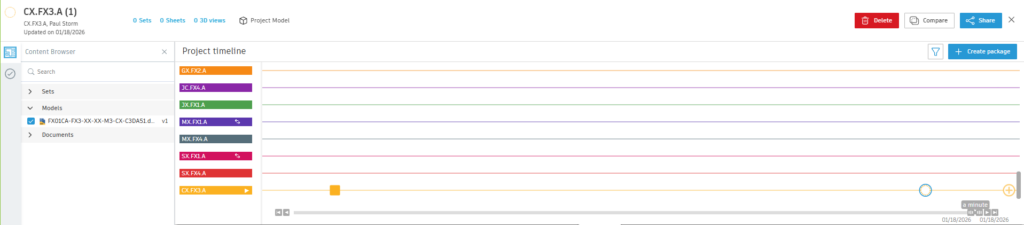
Sharing a package places the information in a folder which serves as one source of truth. It is simply meant to be a record of what was shared and at what time this was shared and serves as a reference in case there are differences of opinion as to what was shared at some later stage. As soon as the information is in the shared folder it is made visible to other teams who may then consume the information through a process called consuming a package. Sharing and consuming packages conclude on a timeliner which gives a graphical interface, and which is easy to navigate.
Once the package is consumed by a team, the team takes complete control of the copy of the one source of truth. In plain English team B can open team A’s Civil 3D model because it is only a copy that they took possession of and they have the permission in their silo to do so. The one source of truth is unaffected by an edit that is performed on the consumed file.
This is then where data shortcuts are created from team A’s model within team B’s folder. These shortcuts are then referenced into Team B’s models so that they may continue with their updated design. Provided team A’s Civil 3D model does not change name, the data shortcuts will update automatically once the new packages are consumed.
To create the Data Shortcuts you proceed as before, albeit on a project folder that is being synchronized to your hard drive. This synchronization is done via the Autodesk Desktop Connector by selecting the relevant project as one of the projects that is synchronized to your computer. If you want responsiveness and you have some space on your hard drive, then permanently sync the folder onto your computer. You then do not have to wait if you have not opened the file for 36 hours. One would keep other references permanently synchronized for the same reason, including point clouds and X-Refs. In fact, the larger files are, the more critical it would be to keep them synchronized to the large hard drive. For this reason, if you do handle a lot of data in your Civil 3D, get yourself a generously sized hard drive.
When you create the folder for your Team’s Civil 3D users, open a blank Civil 3D file from a template. This will allow you to set the team folder as the working folder. Do this at the beginning and get it right the first time. If you get it wrong later in the process, you may have to re-establish the folder from scratch after deleting it.

Next, use a Project Template to create the requisite folder structure (or just create the shortcuts folder without the project template). I name it b.CX.FX4.A.C3D that the project is Civil 3D specific. You may also create your own folder structure and supply that as the Project template instead.
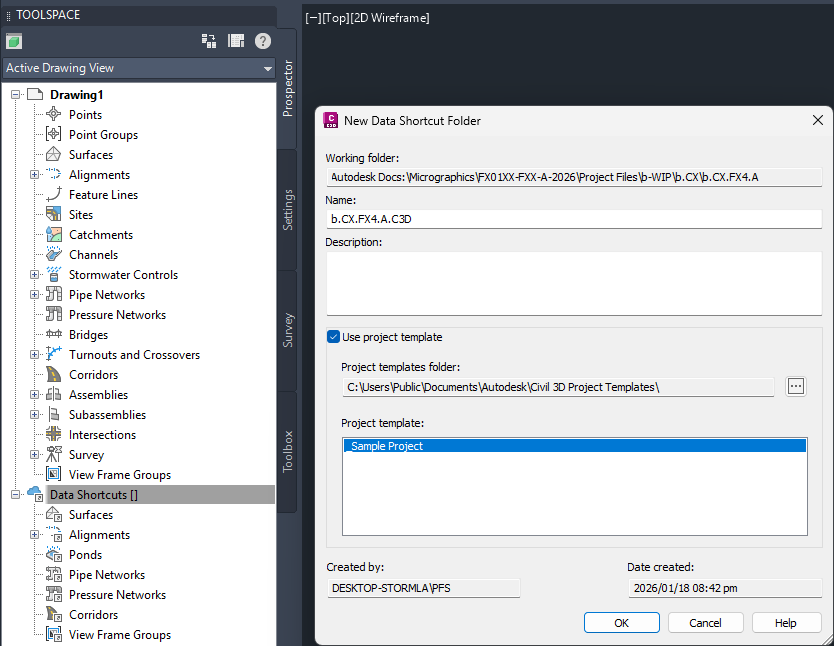
You can further associate a default data shortcuts folder with the file you are working with, or even a folder of drawings that you want associated with the same data shortcuts folder. This can be useful if you don’t constantly want to assign the working folder.
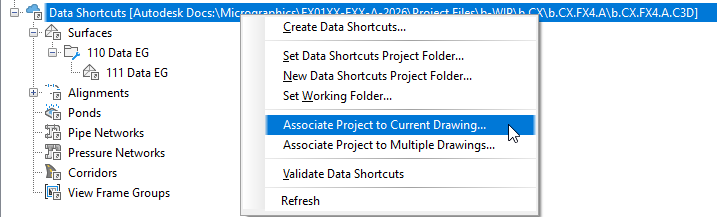
In the picture below you can see how the Project Template folders are synced to the cloud. The Shared folder containing the shared package is shown on the left, while the Consumed folder is shown on the right. It is from the consumed folder that a team will create civil 3D Data Shortcuts.

The data shortcuts are conveniently arranged in folders for each Civil 3D category. These include Alignments, Corridors, Pipe Networks, Parcels, Pressure Pipe Networks, Profiles, Sample Line Groups, Surfaces and View Frame Groups.

Open the file that was consumed. This is NOT your file, strictly speaking, but you have control over it due to it being in your silo. Do not change the design. Simply create the relevant shortcuts.
Manage Tab > Data Shortcuts Panel > Create Data Shortcut
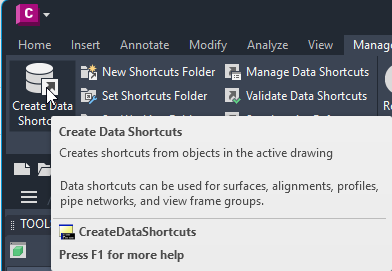
After the data shortcut is created it shows up in the data shortcut folder. Any Civil 3D Model that has its data shortcuts set to this folder will now have access to the data shortcuts. When the file in the consumed folder is updated, the data shortcut will update automatically.

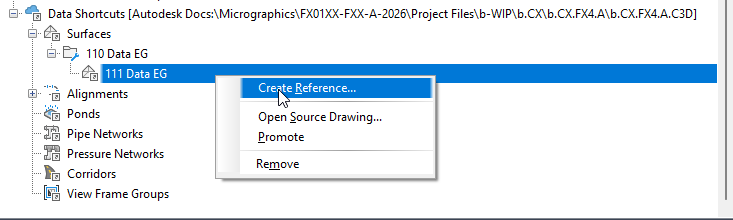
It is as easy as right mouse clicking on the data shortcut and referencing the shortcut into your model. This reference is non editable, but interacts with your Civil 3D model so that you can create other objects that are reliant on the data shortcut.
In conclusion, while the process of creating data shortcuts is team specific, the methodology is much the same as one would follow on a Local Area Network. While it is possible to centralize data shortcuts between teams by creating yet another team, it is debatable whether the managerial overhead to manage their creation and maintaining their relevance is worth it. Data shortcuts are better managed by BIM Managers in their own teams. If consumed files are altered accidentally then the one source of truth is there for one to recover from again. The shared file (one source of truth) also serves as a reference to resolve disputes declared. Probity agreements should be established before the project ensues such that parties settle amicably if possible. Use data shortcuts to broaden teamwork where specialists work on certain parts of the Civil 3D project, or when you want to lock down a design such that those using the data shortcut references cannot manipulate the underlying information in the data shortcuts.
If you need help adopting the AEC Collection or the Autodesk Construction Cloud in your practice or you are looking to invest in hardware, please contact Micrographics so that we may be of assistance.

