
One of my Autodesk Build Forma customers recently asked me how the numbering of issues is managed by Forma when:
- On the Forma Mobile App when connected to the internet.
- On the Forma Mobile App when disconnected to the internet.
Their scenario: two people are concurrently generating issues in the same location (room) where one is connected to the internet and the other is not. Both users inspect the same room together and create issues relevant to their separate disciplines and responsibilities. When they were both were connected to the internet, they relied on the number sequences of the issues to generally group the issues per room. However, when one disconnected from the internet, the question how the issue numbers are then incremented. So, they suspended their operations and asked me for advice.
I postulated that the issues would generate their own long identification number (GUID) and that a short identification (the issue number) would increment monotonically in the sequence of issue generation. If a device was disconnected from the internet, I believed that the GUID would be created and that the stored issues would then generate issue numbers once connected to the internet again.
This did not sit well with them, since the issues would obviously not be grouped together loosely by issue number as they move through the building.
I tested the platform the next day with my colleague, Mmamojaki Lesole.
Mmamojaki was connected to the internet The issues she was creating immediately showed up on the online portal and were incrementing monotonically.
In contrast, I was disconnected. The app is specifically designed to be able to operate in this way for when your internet fails on-site or is simply not available. One synchronises the necessary documents to one’s mobile device (in my case, a Samsung Galaxy Phone), before going on-site. When the issues are created, they do not automatically show up online. Also, their numbering is placed in abeyance (this is shown below). The issues are only numbered after the user connects to the internet again. At this stage, the numbering will continue from the last created issue that was allocated a number by Forma.
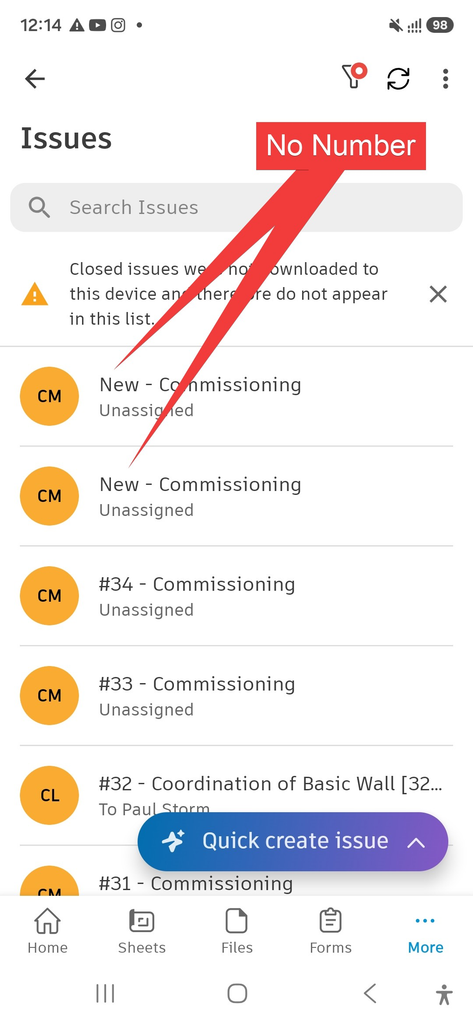
This brings us to the solution for this customer: Assign locations to the issues so they may be filtered by their location instead of relying on the issue number.
Once the locations have been added, create a filter.
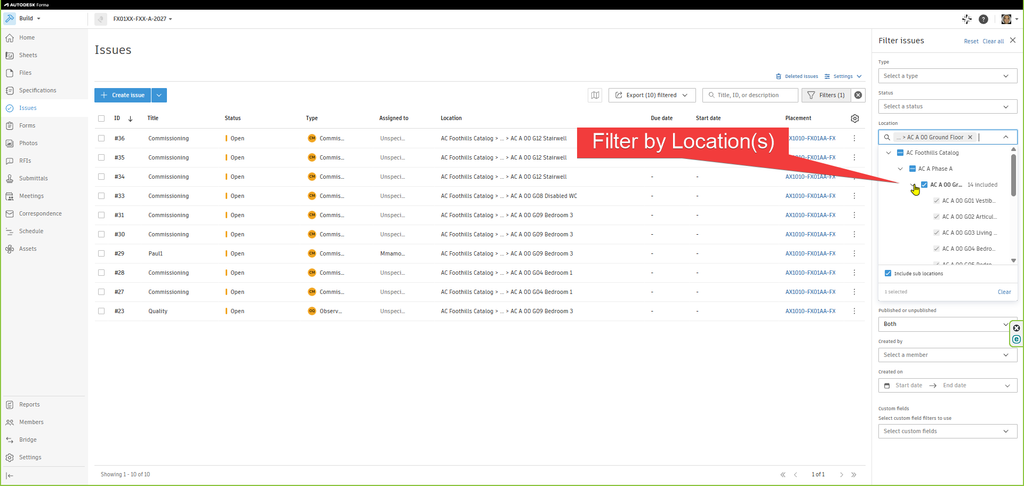
Then export a report while filtering.
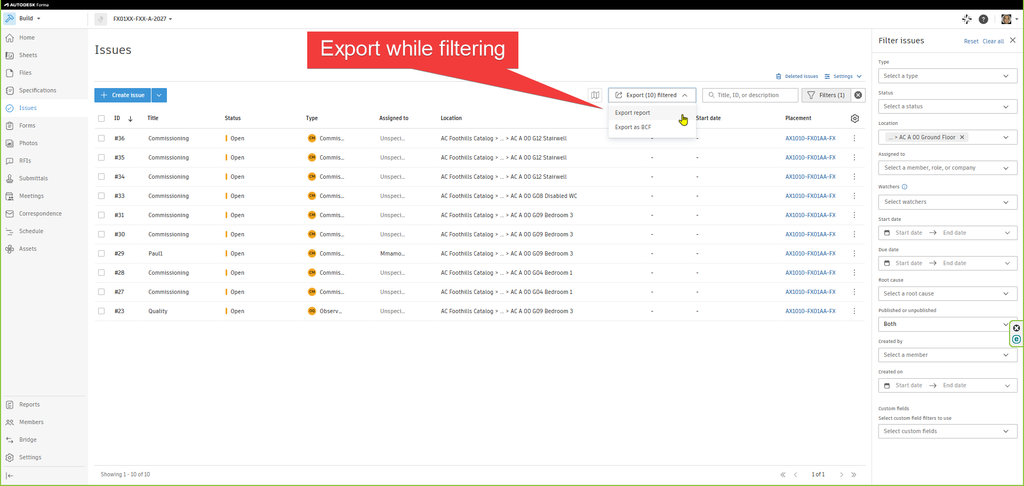
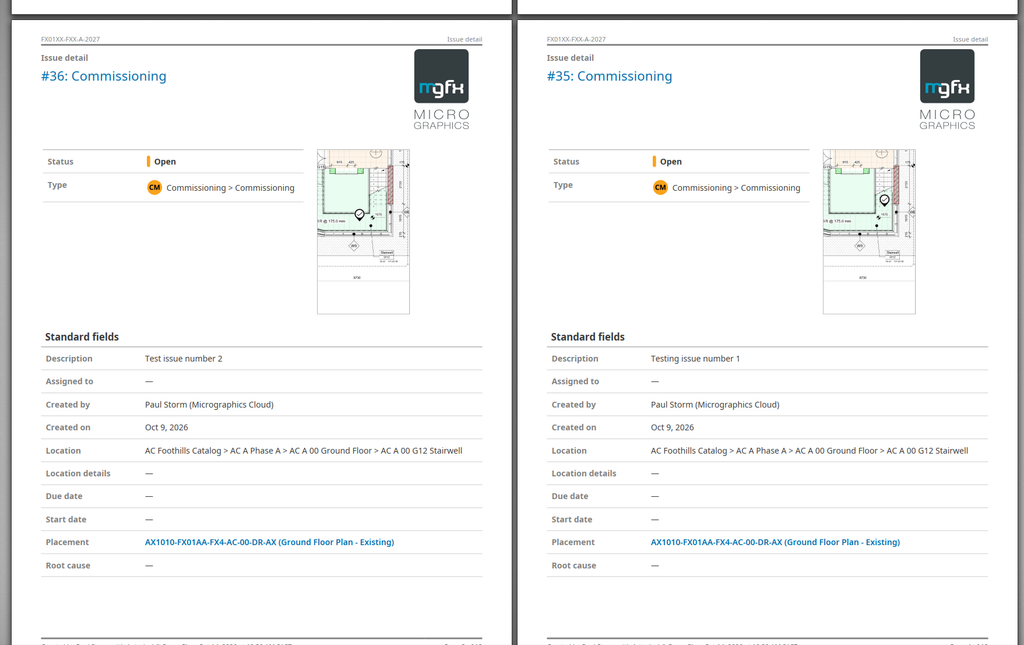
Download the PDF report.
The generation of locations and the management of them is hugely beneficial to the project. Set them up as soon as possible and create areas for them so issues reference them automatically. Also use them as references to other objects.
What is the process of creating locations? I suggest using the template that is provided by Autodesk and that you can download from Forma.
Project Admin > Locations > Download template
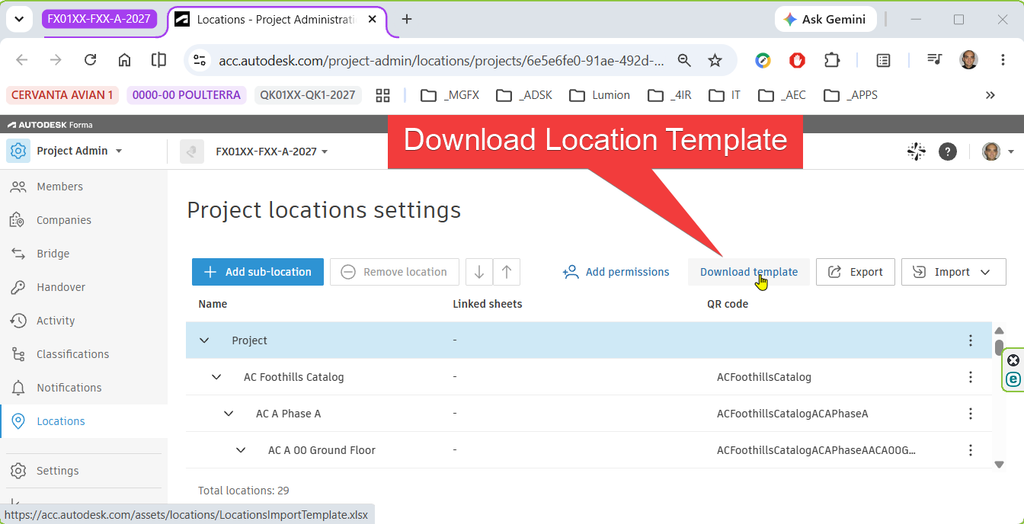
When you create the locations, make sure that your locations have unique names across phases. Note, for the QR code field, Autodesk specifies a maximum of 255 alphanumeric characters with no spaces.
If you are continuously revamping or altering a building such as in facilities management space management departments in a large corporate Headquarters, another way of thinking about phases is the job number for revamping a specific space in the building. You can use worksets, phases and options to manage that in a Revit model, but you also need to reflect that in the information model.
Shown below is the schema I use:
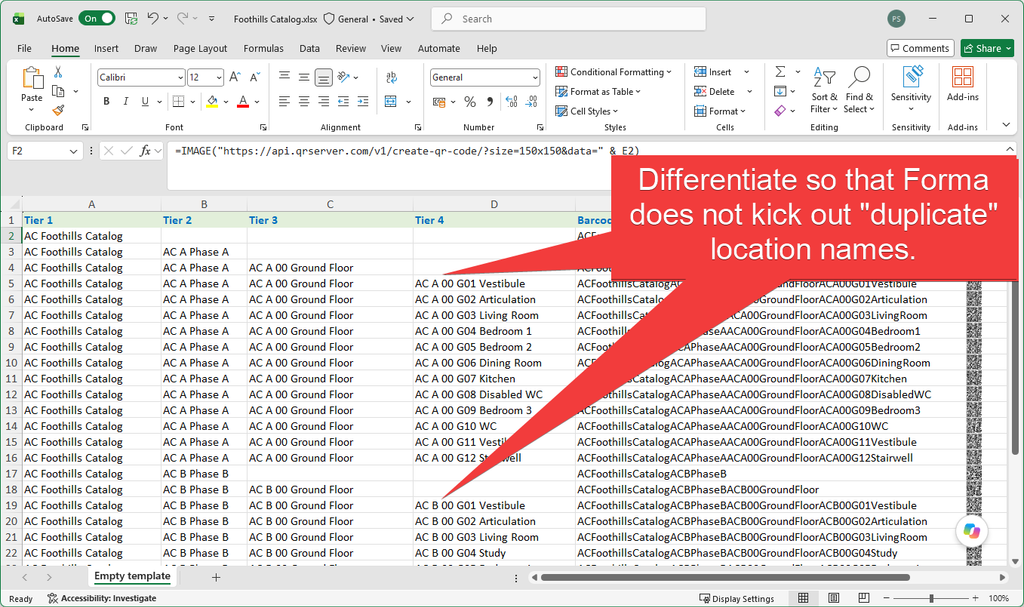
You can use Excel to generate QR codes if you like. I took this formula form the internet so please use it with caution, especially in secure environments. If you want more information refer to: https://goqr.me/
=IMAGE(“https://api.qrserver.com/v1/create-qr-code/?size=150×150&data=” & E2)
Alternatively you can use Word and the DISPLAYBARCODE command, again with caution if there is sensitive information that will be printed.
Insert Field Brackets: Press Ctrl + F9 in your Word document to insert special field code curly braces { }. (Note: You cannot just type standard curly braces from your keyboard).
{ DISPLAYBARCODE “data” BarcodeType [switches] }
In this help document from Autodesk, Link QR code to a Location, they refer the user to another site you can use to generate QR Codes:
https://www.qr-code-generator.com
Here you can see I use Copilot to generate a script. While I am perfectly capable of writing this for myself (given time), co-pilot just took a few seconds, and made no mistakes.
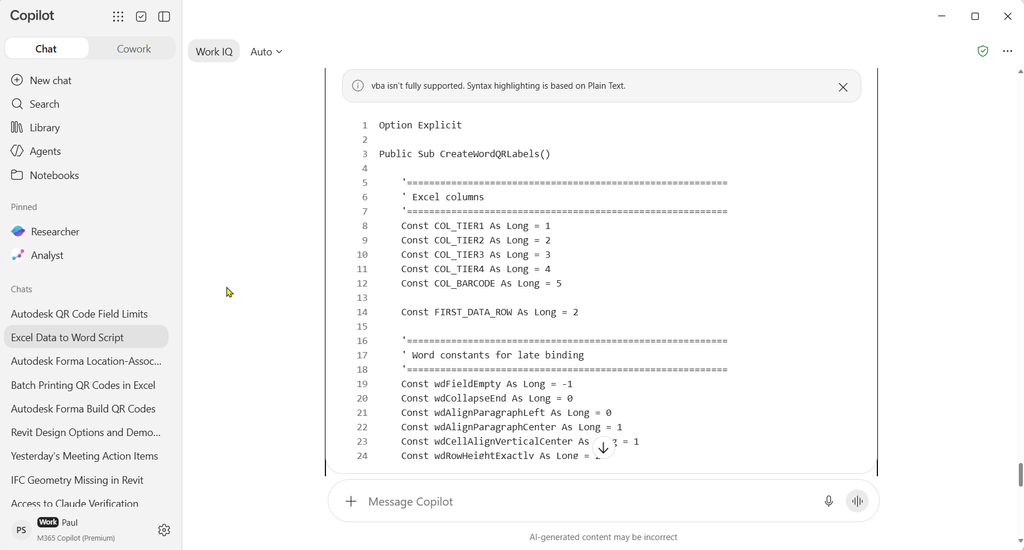
I then run the script in Excel.

Which generated a Word document with the necessary information for printing.
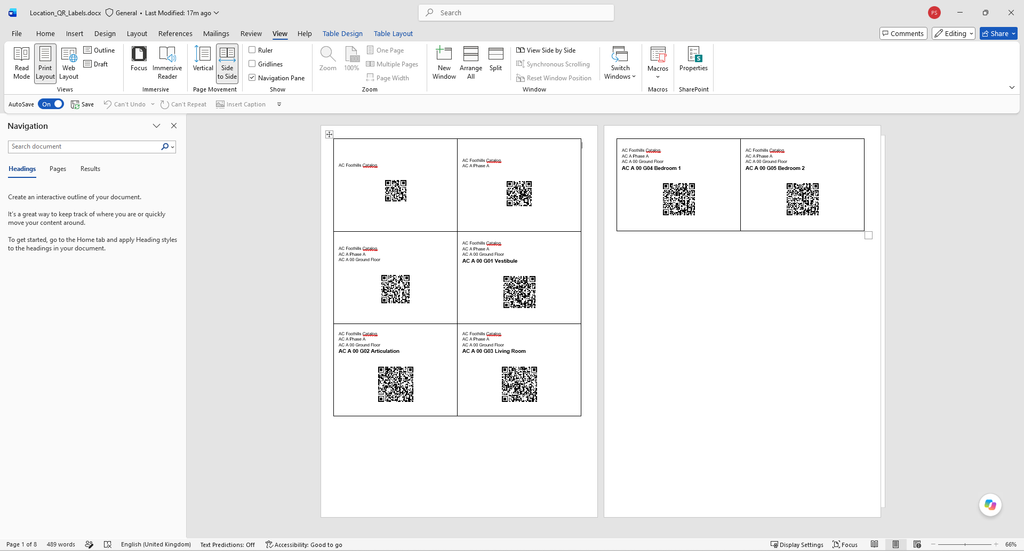
Now if you print this QR code, you can display it physically on-site to identify the location. Use the app, navigate to locations, and then use the button to scan for the QR code. The app then lists the following items that reference the location, and subject to your permissions.
- Issues
- Forms
- Assets
The following is not listed, even though location can be referenced to them.
- Photos
- RFIs
- Submittals
You can link a sheet to a location and even define a polygon/area on the sheet corresponding to that location.
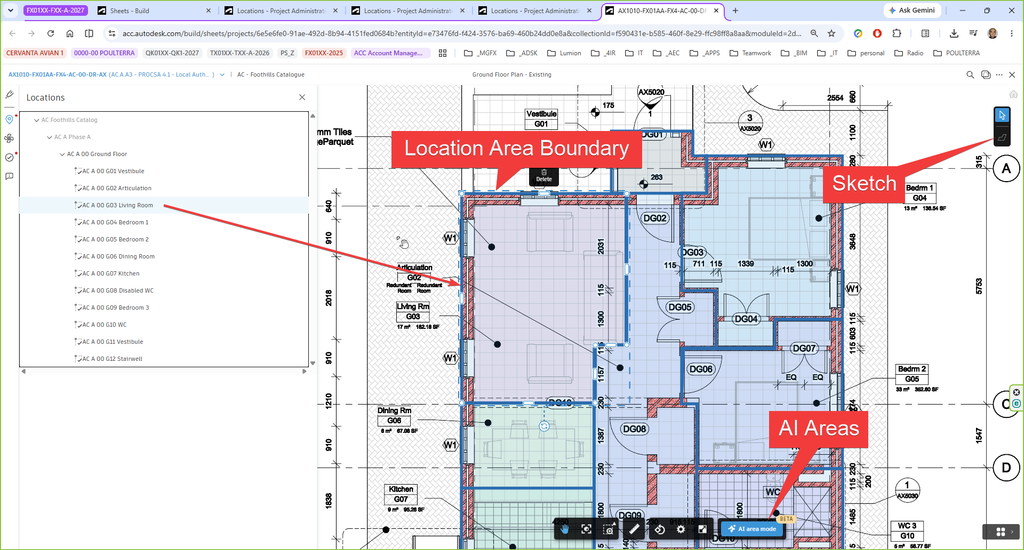
An issue placed within the location area then has its location field populated automatically assigned by default, but you can manually change it if it is not correct.
To add new locations or modify existing ones without breaking active links to your issues, you must preserve the existing Location IDs.
- Go to Project Admin / Settings > Locations.
- Click Export to download the current location tree as an Excel file. This file contains a “Location ID” column as the very first column.
- Leave existing rows and their Location IDs completely untouched.
- Add your new locations in the empty rows at the bottom of the relevant schema structure. Leave the Location ID field blank for the new rows—the system will automatically generate new unique IDs for them upon import.
- Save the file and click Import to re-upload it.
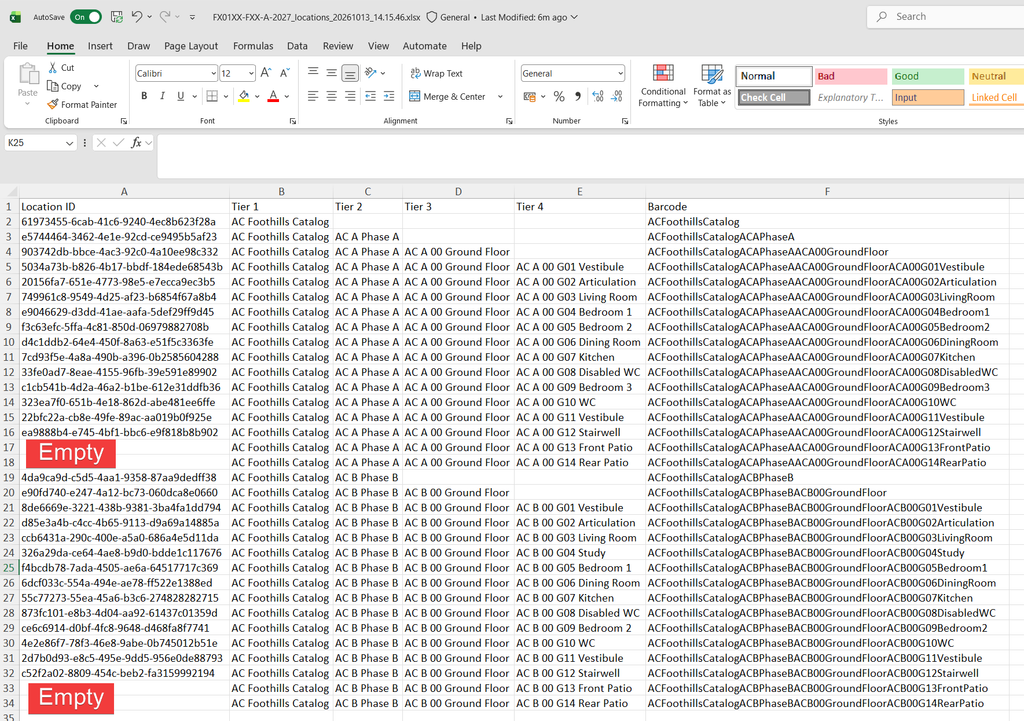
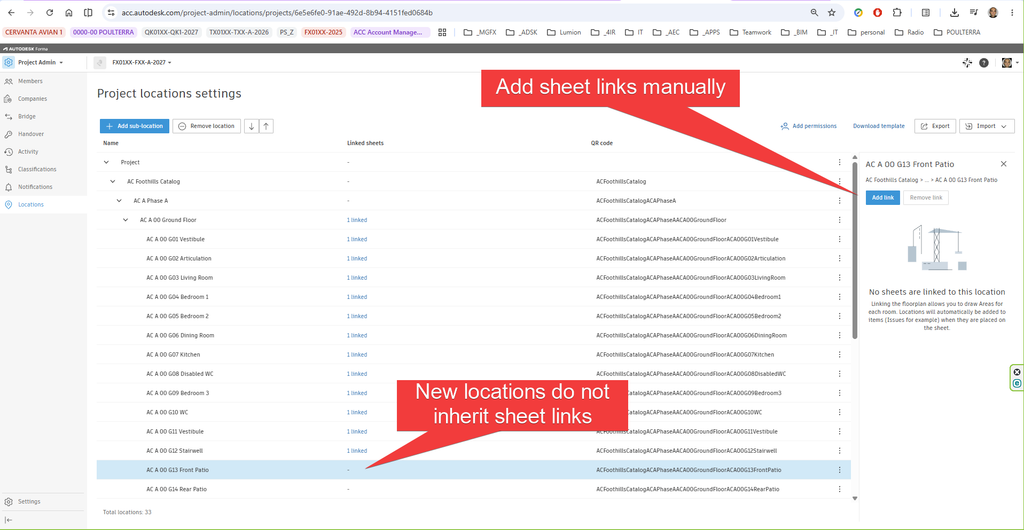
New locations need to have their links to a sheet added manually.
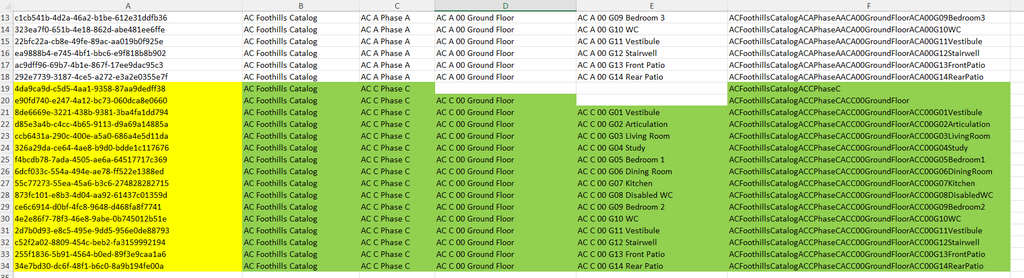
You may alter the location name and the GUID. On import, the location is updated in the project and the references to the location are left in place. In the example below, yellow is unaltered and green is changed.

If you try to change the Location ID, Forma will reject the re-import.

If the Location ID is missing.

Then Forma will delete the existing location and replace it with another.
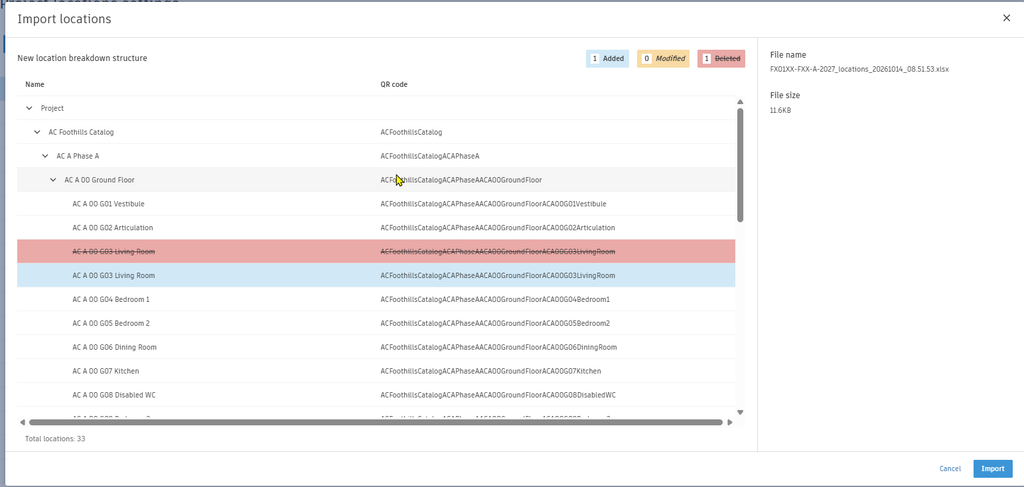
The deleted location’s location area is also deleted, and the items references to the deleted location loses their references to it. Even if the text names of the locations are identical, the system assigns entirely new unique IDs to the “recreated” locations.
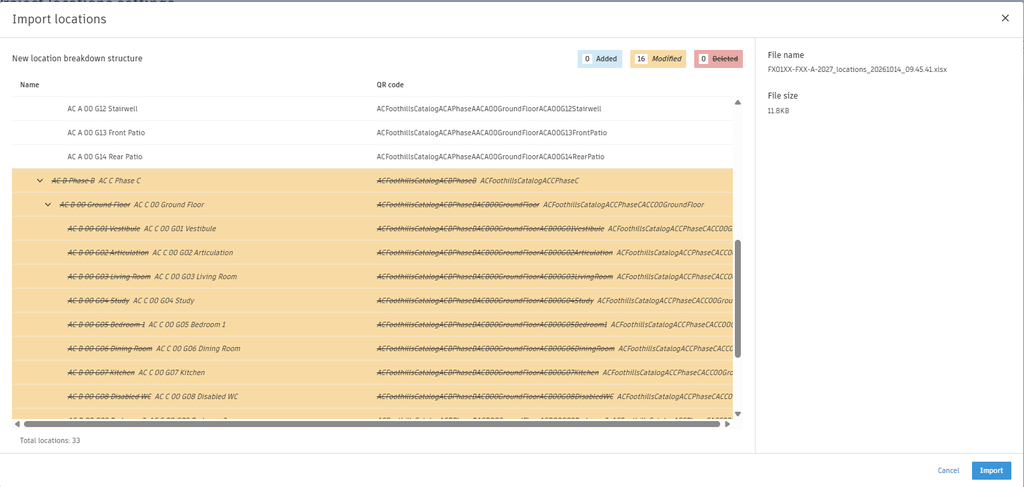
If you want to change the names of earlier Tiers, leave the Location IDs in place.
Then Forma will allow you to rename with the IDs and references in-place.
If you are new to BIM and you are under the impression that one person can do everything, I strongly advise you to reconsider and to appoint a BIM manager to manage the information for the project. As the above discourse demonstrates, there is more to BIM than just putting together a 3D model and codifying the elements. The information that is generated must also be managed. If that is being managed for your role so that you only must perform your relevant duties, it makes the process a lot easier.
If you need help adopting the AEC Collection or Autodesk Forma in your practice or you are looking to invest in hardware, please contact Micrographics so that we may be of assistance.

