
In this blog, we investigate how we review Civil 3D models and sheets in the cloud when we have the Autodesk Construction Cloud (ACC) Collaborate Pro at our disposal.
Reviewing files is the process of submitting files to the approval of experts and those with professional liability to OK them for the consumption of others.
Initially review processes must be created. It is recommended that review permissions be assigned by role or company (not individuals) so that the reviews may be included in project templates.
You have a choice of various review processes in which a group approval review in Autodesk Construction Cloud (ACC) allows multiple users (reviewers or approvers) to be assigned to a single step in a review workflow. Any member of this group can review and comment on files, ensuring broader input before a decision is made, which facilitates team collaboration.
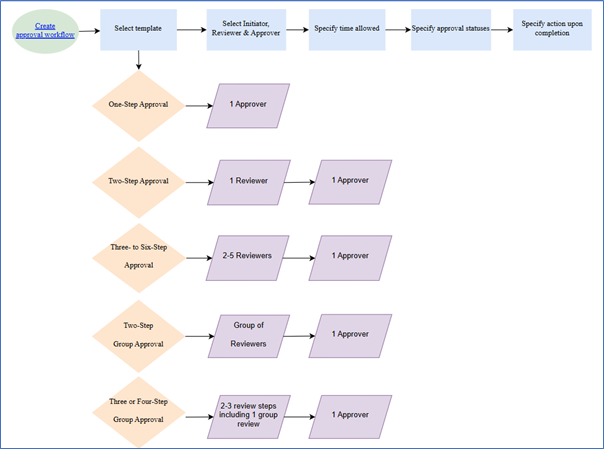
For the purposes of demonstration, I will be using a one-step review process within which I am the initiator, reviewer and the approver.
The folder structure in ACC is important. Because we want to be able to scale up to the largest projects, we accommodate companies that are vertically integrated and that may have multiple teams across a task team.
Each team operates in their (Work-In-Progress) WIP silo. We keep each software authoring platform separate from the others. This allows us to create the relevant sub-folders to manage the application with.
While your project might not need such a detailed approach, I recommend the same type of folder structure and workflow.
There are two types of reviews that are of interest in the BIM Collaborate Pro Process.
The first type of review process concerns the model share of the Civil 3D model with other teams for collaboration and coordination purposes.
This is done through the timeliner of the Collaborate module. Within the WIP Civil 3D folder, the model is submitted for review.
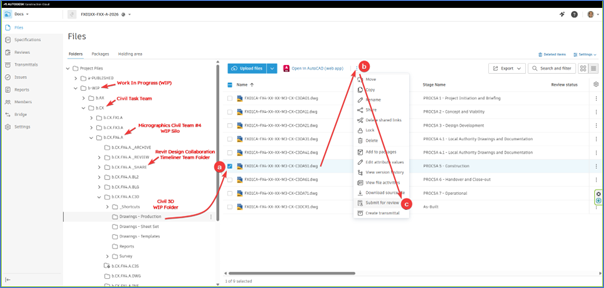
On successful completion of the review, the model is copied into the Revit Design Collaboration Timeliner Team folder. This process is initially set up in the review definition.
The reviewer completes the review.
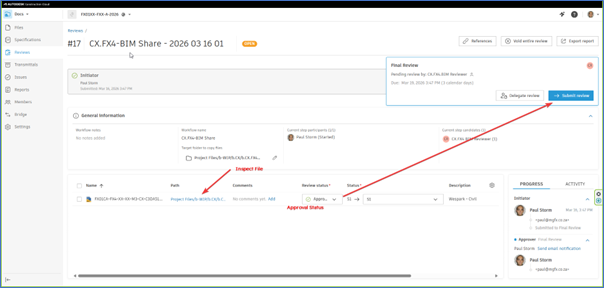
All the models that are copied into this folder are available for the BIM Manager to share with external consultants and teams through a Collaboration Package.
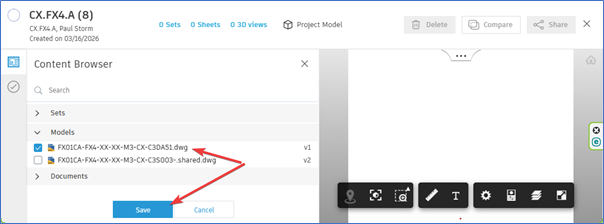
While not exactly a “review”, the possibility exists that the receiving BIM Manager rejects the Collaboration Package, and in the case that amendments must be made before acceptance, an issue would serve as a condition for the package to be accepted on resharing.
This rejection could be made on inspection of the file in and of itself.
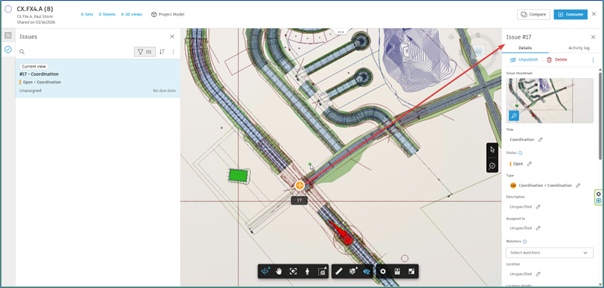
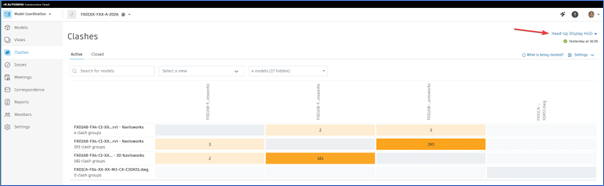
Rejection could also be because of clashes. On some projects the unilateral shared folders are used for just this reason (a heads-up clash detection). This would be as opposed to a formalized clash detection in a consumed folder.
The second type of review process concerns the document share of printed documents into the Published folders.
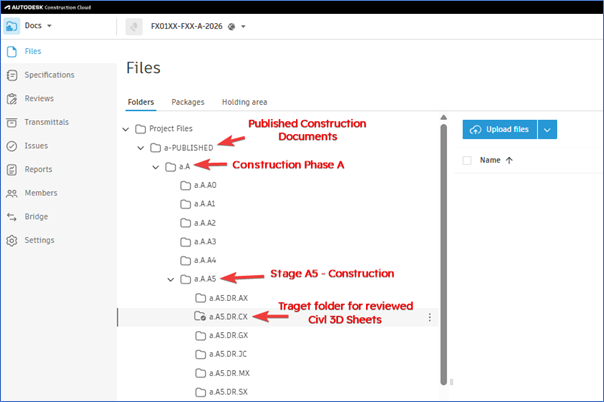
The target folder in this case is not the shared timeline folder, but the published folder. For the sake of this demonstration, we are publishing Civil construction (A5) drawings for Phase A of some development. On the successful completion of the review, the files will be copied from a WIP folder into the Published folder.
The BIM Manager managing the project must consult with all the teams to set up their review processes, including all the relevant stakeholders with the relevant permissions.
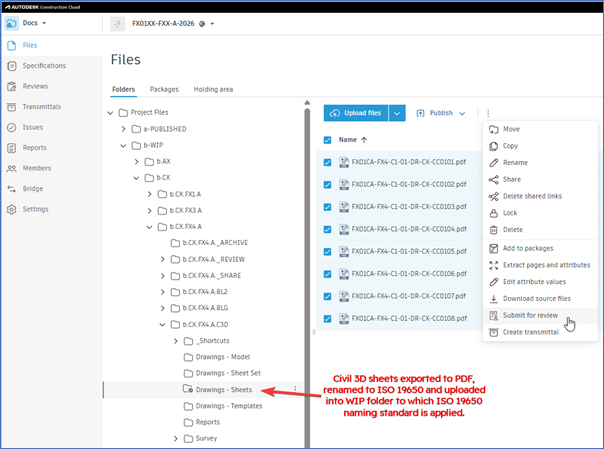
One will most probably use sheet sets to create sheets in the Civil 3D environment. Unlike Revit, there is not built-in capability to name container files and their sheets according to the ISO 19650 naming standard. You will need to rename the sheets yourself before uploading onto the cloud. I recommend this method since the fields in the ISO 19650 naming standard can be extracted when uploading into a folder to which a naming standard is applied.
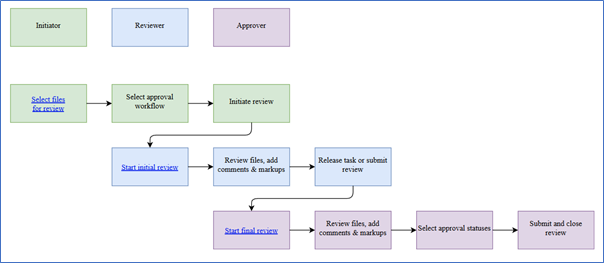
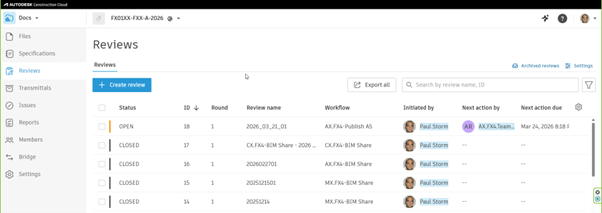
Once a review is initiated, it is assigned to the reviewer, who is alerted by email.
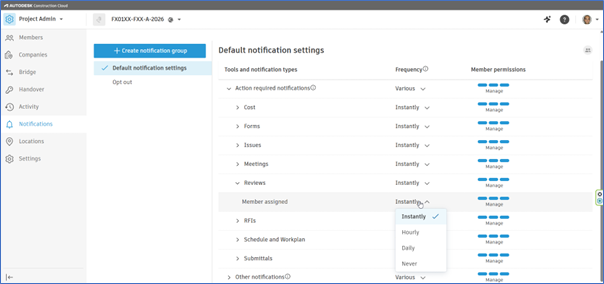
The frequency of alerts is set in the project settings for alerts. However, this can still be distracting to the receiver of such alerts, especially if there are multiple projects ongoing at the same time. I create rules in Outlook to route incoming mails from projects into folders for the projects. That way, I can pay attention to the project when time presents itself.
When the Reviewer opens the review, they can start the review process.
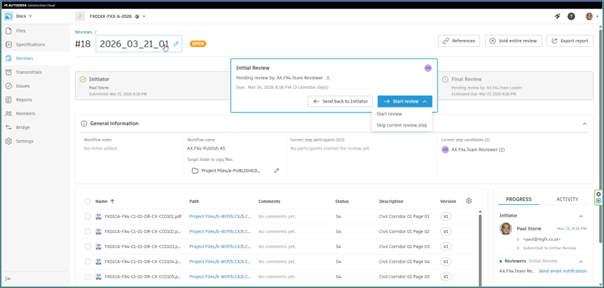
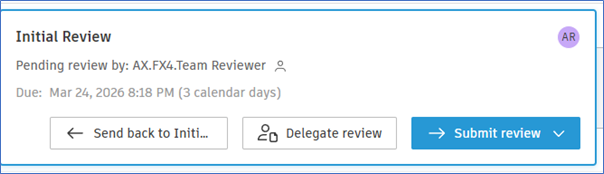
Depending on the way in which the review workflow was set up, you can then either send the review back to the initiator, delegate the review if you can no longer continue or complete and submit the review.
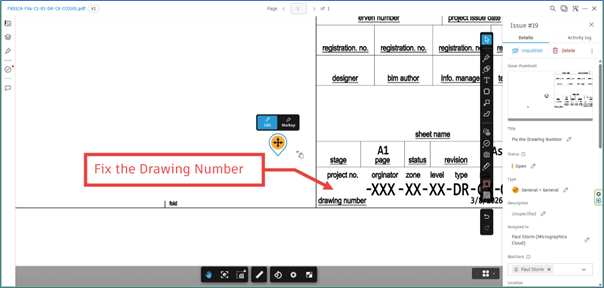
You may then open the relevant documents and create markups and issues as required. Markups may reference Sheets, Files, RFIs, Forms, Submittals and Assets. Each step of the review process allows the reviewer to add comments and markups.
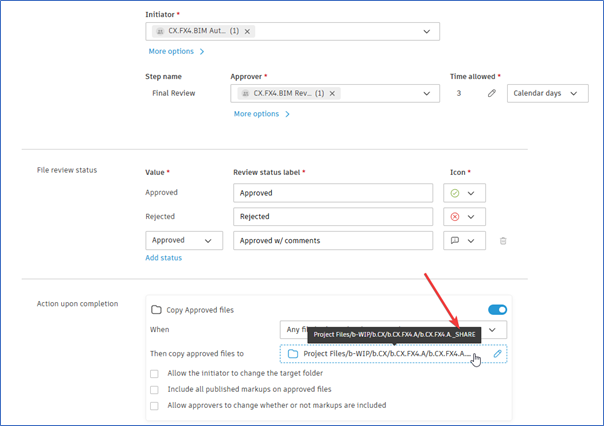
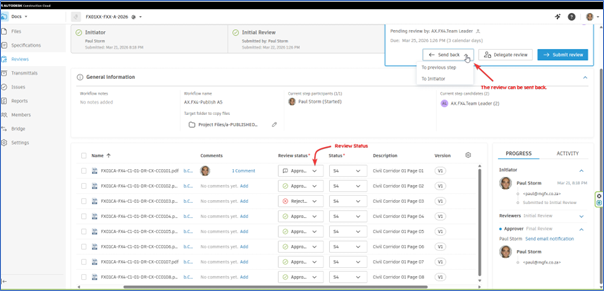
At the last review process, the approver can then assign the status of the review. The ability to send the review back at each step to the previous step can be set up in the review process. Consider the scenario in the image below. If there are multiple files that need to be reviewed, then having a percentage of them pass, a percentage of them pass with comment and a percentage of them fail might be preferable than returning the process partially complete before completion. The choice of how this is managed is up the people responsible for setting up the workflow for the review.
If the review is completed the resultant action can be seen in the “Action upon completion” field for each file. The files that passed are copied into place, while the others are awaiting resubmittal for review, and allocated the “Rejected” review approval status.
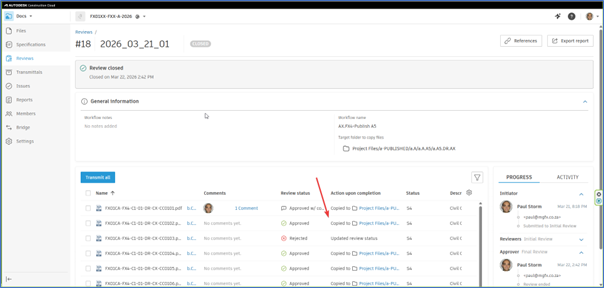
This way, a filter can now be created in the WIP folder where only the rejected files are identified and resubmitted after fixing. This ability to filter folders is powerful and can be written into protocol to guide users when submitting. If Autodesk Build is available, then the markups can be referenced to RFIs. If you only have Collaborate Pro or Docs, then you are limited to creating issues if you want the markups tracked.
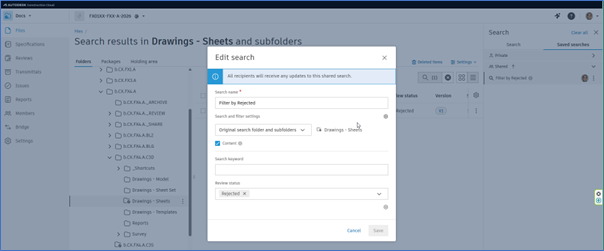
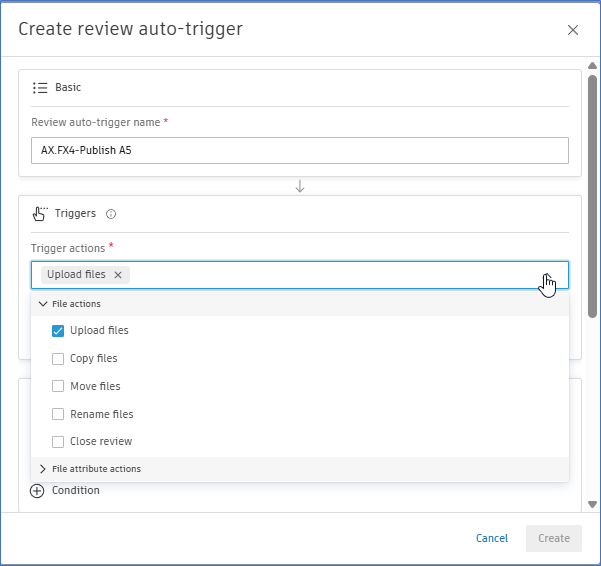
If the argument is made that a file that lands in the folder must be reviewed automatically, a trigger can be set on the folder to review any file that lands up in it.
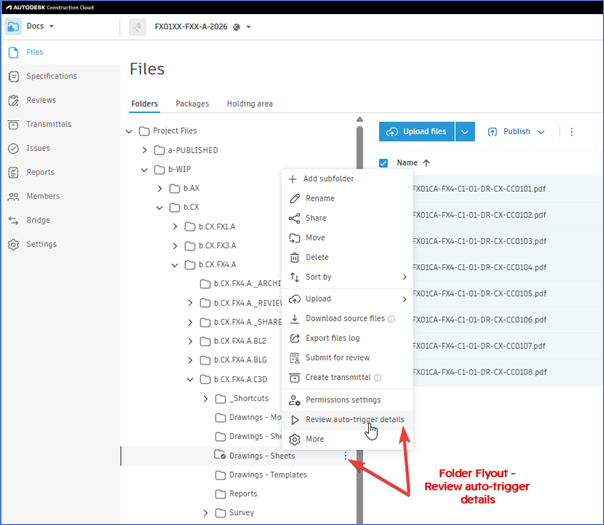
You may create a new review trigger or edit an existing one. Triggers help automate review workflows, making sure that reviews happen timeously.
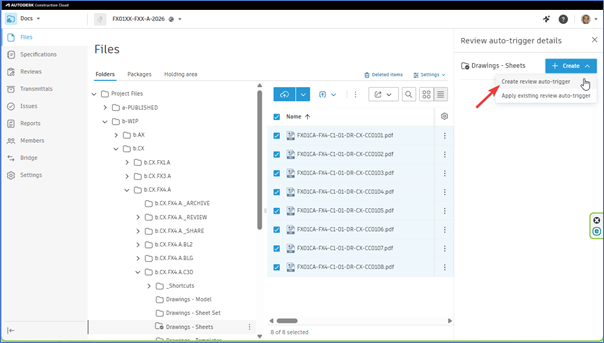
The triggers can be actioned by a variety of events. Examples are when files are uploaded, copied, moved, renamed or when a review is closed (triggering a follow-up review). It is recommended that the trigger workflows are discussed with the relevant team members to make sure that they will accomplish what is needed.
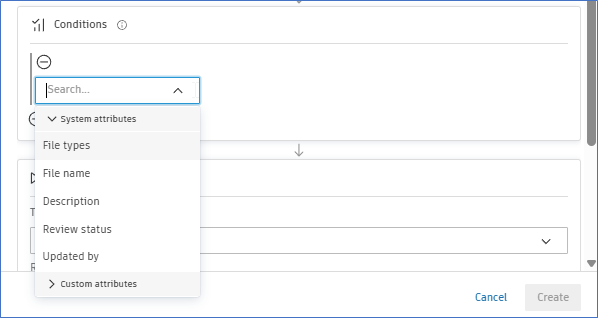
There are also conditions that can be applied to filter the files that are supposed to be operated on by the trigger. Were you to differentiate, say, between models and PDF sheets, then you could automatically review 3D models for publishing only, even though they exist in the same folder as the 2D PDFs.
If you need help adopting the AEC Collection or the Autodesk Construction Cloud in your practice or you are looking to invest in hardware, please contact Micrographics so that we may be of assistance.

