Autodesk Fusion has established itself as a powerful platform for designers, engineers, and product developers by combining CAD, CAM, CAE, and PCB tools into one environment. Beyond just creating 3D models, Fusion provides advanced simulation and assembly tools that allow users to test their designs before they reach manufacturing. Two particularly useful features for assembly design and validation are Motion Link and Interference Detection. Understanding how these tools work—and how to apply them—can dramatically improve both the accuracy and efficiency of your projects.
What is Motion Link?
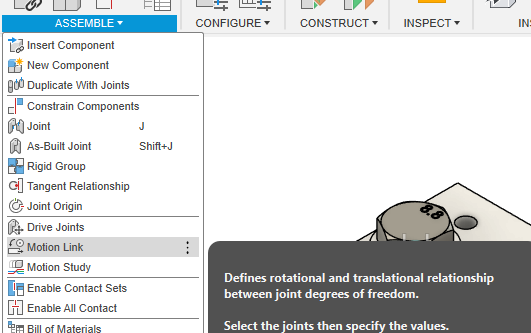
When working with assemblies in Fusion, you often need components to move in relation to each other. For example, think of a car wheel rotating on an axle, or a piston sliding inside a cylinder. While joints (such as revolute, slider, or cylindrical) define possible movements, Motion Link takes it a step further by synchronizing the movement of two or more joints.
How Motion Link Works
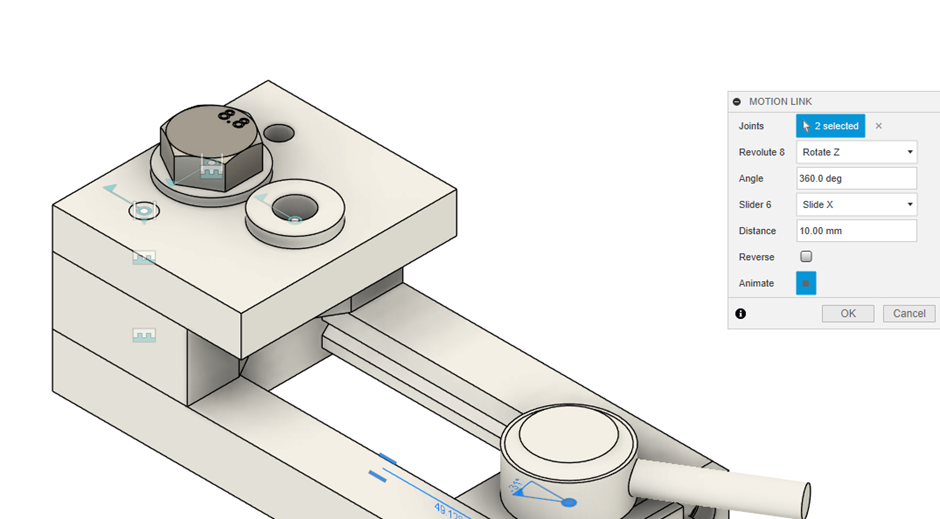
Motion Link establishes a direct relationship between the motion of one joint and the motion of another. For instance:
- You can link the rotation of a gear to another gear, ensuring they move in the correct ratio.
- You can coordinate a slider joint with a revolute joint, such as turning a crank to push a piston forward.
- You can create realistic mechanisms like scissor lifts, hinges, or cams.
By applying Motion Links, you eliminate the need to manually animate each joint separately. Instead, Fusion automatically maintains the correct motion relationship, letting you test the design’s functionality in real time.
Benefits of Motion Link
- Accuracy in mechanical design: Motion Link ensures mechanisms behave as intended, reducing guesswork.
- Time-saving animations: You can quickly simulate how your design moves without manually controlling every joint.
- Better design communication: When presenting a concept to a client or team, showing a working motion conveys function more clearly than static views.
- Design validation: By linking motions, you can spot design flaws early, such as a piston reaching its limit too soon or gears not aligning correctly.
What is Interference Detection?
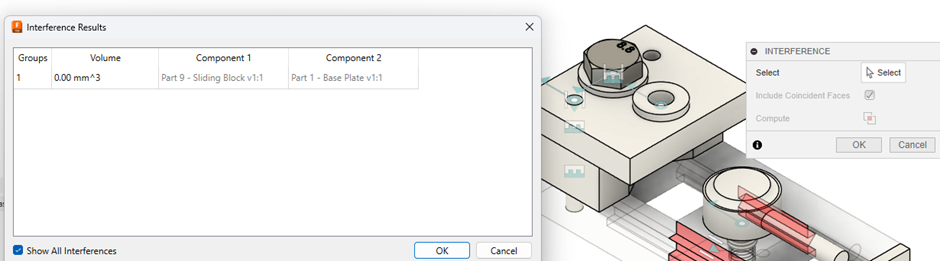
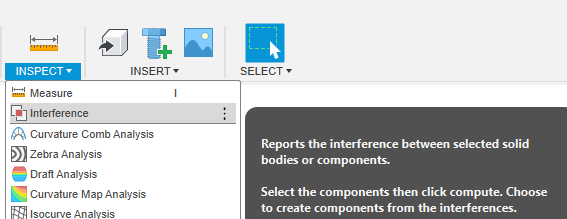
In assemblies, especially those involving many parts, it’s crucial to verify that components don’t occupy the same space unintentionally. Interference Detection in Fusion automatically checks for overlapping geometry between parts, ensuring the design is manufacturable and functional.
How Interference Detection Works
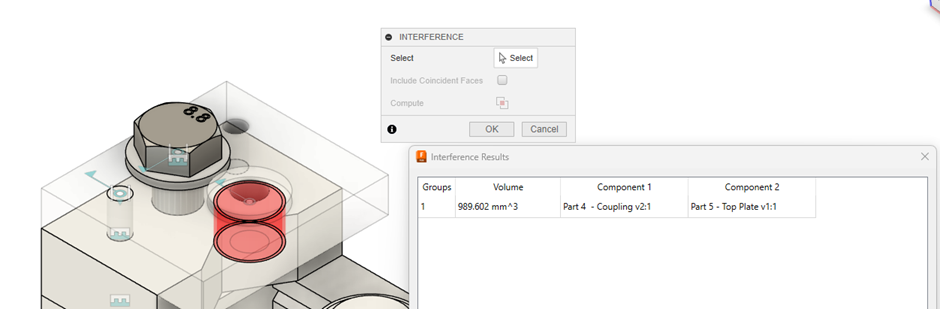
When activated, Fusion scans your assembly and highlights areas where two or more bodies intersect. For example:
- A bolt that is too long and pushes into another part of the housing.
- A shaft that does not align properly with a bearing hole.
- Gears that overlap instead of meshing correctly.
You can choose to analyze the entire assembly or only selected components. Once Fusion highlights the problematic areas, you can revise dimensions, adjust constraints, or reposition components.
Benefits of Interference Detection
- Error prevention before manufacturing: Detecting overlapping geometry prevents costly errors during machining or 3D printing.
- Time savings: Instead of manually checking clearances, the software automatically identifies issues.
- Improved reliability: Confirms that your model is practical and functional when assembled.
- Supports collaboration: Detecting interferences early makes it easier to communicate changes with team members.
Using Motion Link and Interference Detection Together
While these tools serve different purposes, they complement each other perfectly. Motion Link helps you simulate motion, while Interference Detection ensures that motion doesn’t cause unintended collisions.
For example, imagine you’re designing a robotic arm.
- With Motion Link, you can coordinate the movement of joints to simulate realistic arm motion.
- With Interference Detection, you can test if the arm collides with its own components or the workspace around it.
Together, these features allow you to virtually test your design as if it were already built, reducing trial-and-error during physical prototyping.