
Introduction
Autodesk Fusion is one of the most versatile design platforms available today, combining CAD, CAM, and CAE into a single environment. But with so many tools at your fingertips, it’s easy to get slowed down by menus and navigation. The real secret to working faster isn’t just knowing what tools to use, it’s knowing how quickly you can access them. Keyboard shortcuts and workspace customisation are the keys to unlocking efficiency. By building muscle memory and tailoring Fusion to your personal workflow, you’ll spend less time searching and more time designing, prototyping, and innovating.
Think of it this way: every second saved by a shortcut, compound over the course of a project. If you’re sketching dozens of parts or running multiple iterations, those small-time savings add up to hours. And beyond speed, shortcuts create a sense of flow. You stop breaking concentration to hunt through menus and instead stay immersed in the creative process.
Essential Keyboard Shortcuts
Fusion comes with a powerful set of shortcuts that can dramatically reduce clicks. Here are the ones every designer should know:
| Action | Shortcut | Notes |
| New Design | Ctrl + N | Instantly start fresh |
| Open Design | Ctrl + O | Quick file access |
| Save | Ctrl + S | Prevent data loss |
| Undo / Redo | Ctrl + Z / Ctrl + Y | Universal lifesavers |
| Line Tool | L | Fast sketching |
| Sketch Shortcut Tool | S | Access most-used sketch tools |
| Project Geometry | P | Essential for referencing geometry |
| Isometric View | Ctrl + 7 | Quick orientation reset |
These shortcuts are the foundation of speed. For example, pressing L to draw a line is far quicker than navigating through the “Create Sketch” menu. Similarly, Ctrl + 7 instantly resets your view to isometric, which is invaluable when working with complex assemblies.



Customisation Tips
Fusion isn’t one-size-fits-all. You can shape it to match your workflow:
- Shortcut Bar (S Key): Press S and pin your most-used commands. This becomes your personal toolbox. For example, add “Extrude,” “Fillet,” and “Offset” so they’re always one keystroke away.
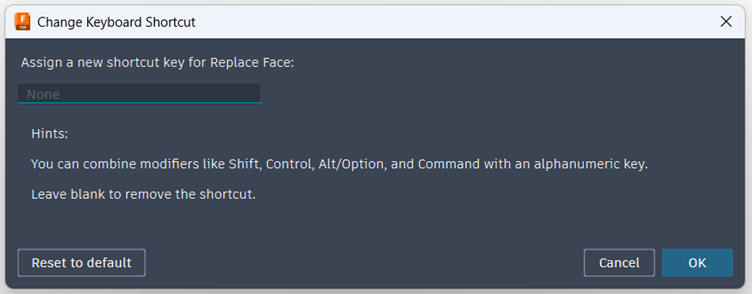
- Custom Keyboard Shortcuts: Go to Preferences → Keyboard Shortcuts and remap commands. If you use “Extrude” constantly, assign it to E for lightning-fast access.
- Workspaces: Hide tools you rarely use. In the Design workspace, keep modelling tools visible but tuck away simulation commands until needed.
- Preferences Panel: Adjust default units, grid display, and navigation settings to match your industry standards.
Example Workflow: Sketch to Extrude in Seconds
Here’s how shortcuts transform a simple workflow:
- Start a Sketch → Press S, select “Create Sketch.”
- Draw a Line → Press L and sketch geometry.
- Project Geometry → Press P to reference existing edges.
- Finish Sketch → Right-click → “Finish Sketch” (or add it to your shortcut bar).
- Extrude → Press your custom shortcut (e.g., E) to extrude instantly.
Without shortcuts, this workflow takes multiple menu clicks. With shortcuts, it’s a smooth keystroke sequence that feels natural after a few repetitions. Over time, this efficiency becomes second nature, and you’ll find yourself completing tasks almost automatically. Add to this a tool like a 3D Connexion Space Mouse for added smoothness while navigating the 3D models on screen.
Productivity Hacks
Beyond shortcuts, Fusion offers other ways to streamline your work:
- Templates: Save setups (units, materials, views) as templates for consistency.
- Marking Menu (Right-Click): Context-sensitive shortcuts appear based on what you select and how often you use them.
- Cloud Collaboration: Pair shortcuts with Fusion’s cloud tools to quickly share and iterate designs.
- Muscle Memory Training: Pick five shortcuts and commit to using them daily. Once they’re second nature, add more.
- Workflow Bundles: Combine shortcuts with custom toolbars. For example, set up a “Sketching Bundle” with line, circle, and dimension tools all accessible via the shortcut bar.
Conclusion
Shortcuts and customisation aren’t just about speed; they are about flow. When your hands know the keys, you stop thinking about menus and start focusing on design. Begin small: choose five shortcuts, customise your shortcut bar, and practice until it feels natural. Soon, you’ll wonder how you ever worked without them.
The beauty of Fusion is that it adapts to you. Whether you’re designing mechanical parts, sculpting organic shapes, or preparing toolpaths for manufacturing, the right shortcuts and customisations make the software feel like an extension of your thought process. And once you’ve mastered them, you’ll not only save time, but you’ll also elevate the quality of your work by staying in the creative zone longer.
Thank you for taking the time to read this post and I wish you the very best learning the new skills that I have highlighted. Once you have implemented these into your current workflow, and I am sure you will become more efficient over time.

