
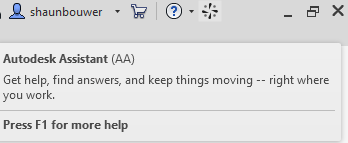
Artificial intelligence has quickly become one of the biggest talking points in the AEC industry. From conceptual design and analysis to documentation, coordination and construction, AI is increasingly becoming part of the tools that architects, engineers, designers and BIM professionals use every day. (Located on the Revit Ribbon at the far top right)
But there is one question that tends to come up almost immediately when AI appears inside a design application:
Can it just do everything for me?
If you have ever taught Revit, you will probably recognise the question.
Can it create the walls for me?
Can it make the levels?
Can it model the whole building?
Can I just tell it what I want?
With the introduction of Autodesk Assistant in Revit 2027, those questions have become much more interesting.
The answer is not quite yes, but it is also no longer simply no.
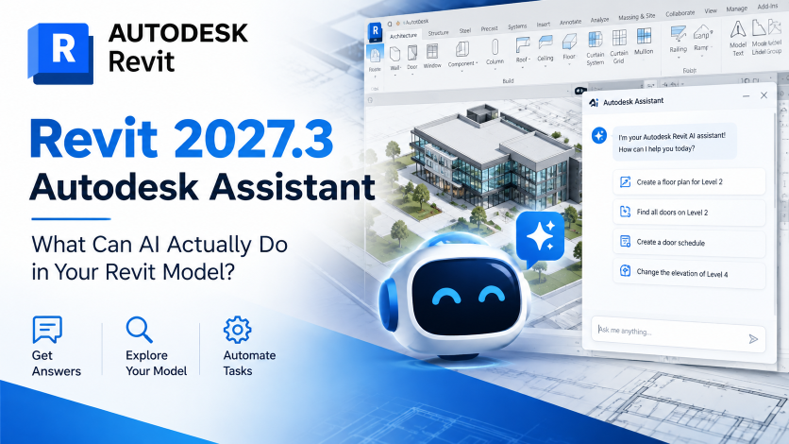
Autodesk Assistant is available in Revit 2027 and later. Autodesk describes it as an agentic design and make partner that can provide product guidance, query model information and automate supported tasks using natural-language prompts.
So, what can it actually do?
More importantly, what can it not do?
To find out, let’s look at Autodesk Assistant from the perspective of a Revit user and, perhaps more importantly, from the perspective of the Revit student who would quite happily let AI do the entire assignment.
AI in Revit: More Than a Help Search
For many years, getting help with Revit generally meant one of three things:
- Searching Autodesk Help
- Searching the internet
- Asking another Revit user
The traditional Autodesk Assistant experience already helped users find information using natural language. The newer Autodesk Assistant inside Revit takes this considerably further.
Autodesk describes the current Revit Assistant capabilities in three broad areas:
Product Help — asking questions about Revit features and workflows.
Model Queries — asking questions about the information contained in your Revit model.
Task Automation — asking Assistant to perform supported operations within Revit.
That last category is where things get particularly interesting.
Instead of simply asking:
How do I create a door schedule?
You can ask the Assistant to:
Create a door schedule.
That is a significant change in the way we interact with BIM software.
Rather than learning where every command is in the user interface, users can increasingly describe the result they want and allow the software to determine the appropriate supported operation.
However, there is an important distinction:
Natural-language control does not mean unlimited control.
So, Can Autodesk Assistant Build My Revit Model?
No! Not in the sense that many users might expect.
Autodesk Assistant cannot simply be told:
Create a five-storey office building with 200 mm external walls, curtain walls on the north elevation, three staircases and a basement parking level.
Then generate the entire building geometry for you.
At least, that is not what the current Revit Assistant is designed to do.
This is important because the term AI Assistant can create the impression that we are dealing with a fully autonomous design system.
We aren’t.
The current Assistant works within a defined set of capabilities and tools. It can interrogate the model, answer questions and perform supported operations, but there are still many traditional modeling tasks that require the Revit user to take control.
And that distinction is a good thing.
The purpose of BIM is not simply to produce geometry.
A professional Revit model contains relationships, constraints, parameters, classifications, documentation, views, schedules, families, coordination information and design intent.
The person creating that model still needs to understand what all of those things mean.
A Real-World Test: What Happens When We Ask Revit to Create a Level?
Let’s use something every Revit student learns early in their training: Levels.
Imagine asking Autodesk Assistant:
Create a new Level 2 at 12,000 mm.
This is exactly the sort of request a student might make.
The response demonstrates an important limitation.
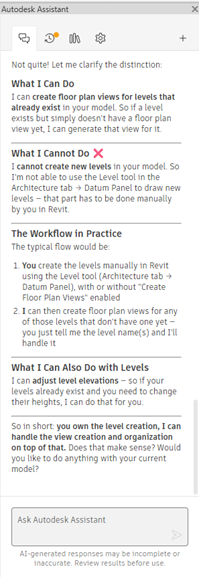
Assistant can work with existing levels and can perform certain operations associated with them, but it cannot simply replace Revit’s Level tool and create a brand-new datum level whenever we ask.
In other words:
Creating the Level:
Not currently supported.
Creating a floor plan for an existing Level:
Supported.
Changing the elevation of an existing Level:
Supported.
But What If the Level Already Exists?
This is where the workflow changes.
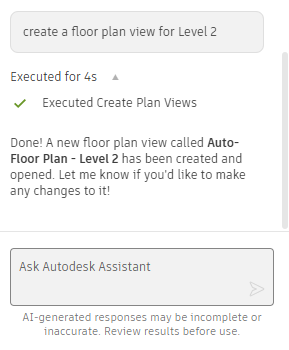
Suppose Level 2 already exists in the model, but no floor plan view has been created for it.
We can ask:
Create a floor plan view for Level 2.
Assistant can perform that operation.
The important point is that it is not creating the building datum itself. The Level already exists. Assistant is creating a view associated with an existing model element.
This is a subtle distinction, but it demonstrates how AI-assisted workflows currently operate in Revit.
The user creates and establishes the model structure.
Assistant can then perform certain supported operations on that structure.
Assistant Can Also Modify Existing Information
Now let’s try something slightly different.
Instead of asking Assistant to create a new level, we can ask it to modify an existing one.
For example:
Change Level 2 elevation to 12,000 mm.
This is a supported type of operation.
The Level already exists, and Assistant can modify its elevation.
This is an important pattern to recognise:
Assistant is increasingly capable of manipulating existing model information, even though it does not have unrestricted access to every modeling command.
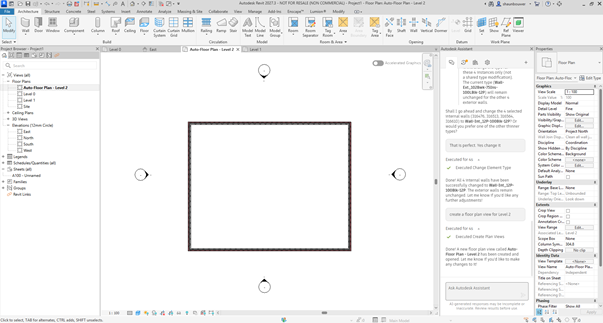
The same principle applies to other supported element parameters.
Autodesk describes Assistant as being capable of modifying parameters and performing various model-management tasks.
Model Exploration: Ask Questions About Your BIM Model
Perhaps one of the most useful capabilities isn’t creating anything.
It is asking questions about the model.
A Revit model contains an enormous amount of structured information. (BIM – Building Information modeling)
Walls have types and dimensions.
Doors have families, types, marks, levels and parameters.
Rooms have names, numbers, areas and associated levels.
Views have properties and templates.
Sheets contain views and schedules.
Schedules provide tabular access to model information.
Traditionally, the user has had to know where to look for this information.
Autodesk Assistant introduces another possibility:
Ask the model.
For example:
How many doors are on Level 2? and select all single doors on Level 2
Or:
List all the rooms on Level 3 and create a Room Schedule
Or:
How many windows are in the project and create a Window Schedule with the following Fields / Filters / Sorting & Grouping changes.
Or:
Find all walls of this type and change it to a different, already loaded wall type.
Autodesk specifically describes model queries as a core capability of Revit Assistant, including extracting information such as counts and model data which can in turn become an element change (Type Selector) or a Schedule which can be exported. (Quantity Takeoff / Quantity Schedule)
This is where AI becomes particularly interesting for BIM.
The Assistant isn’t simply answering a generic Revit question.
It can potentially answer a question about your specific project.
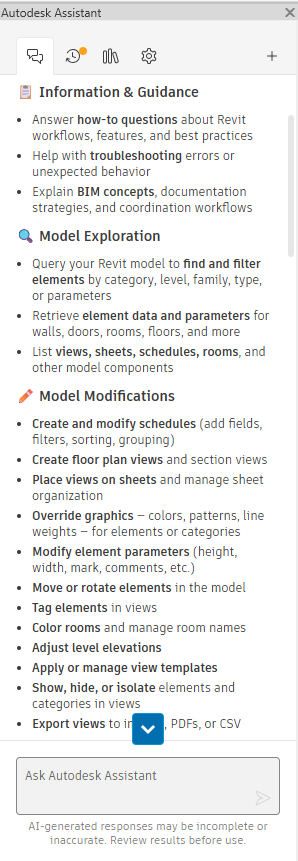
Finding Elements and Their Parameters
Revit is fundamentally data-driven.
Every element contains information, and parameters are one of the mechanisms Revit uses to define and communicate that information.
Autodesk’s Revit documentation describes parameters as information containers used to define and modify elements and communicate model information through tags and schedules.
Assistant can make accessing some of that information more conversational.
Instead of navigating through the Project Browser, selecting elements and inspecting properties manually, you can ask questions such as:
Find all doors on Level 2.
Show me the properties of this wall.
Which rooms are larger than 20 square metres?
List the windows on the north side of the building.
The exact response will depend on the model, the request and the capabilities available in the current Assistant experience, but the principle is powerful:
The model becomes something you can interrogate using natural language.
Schedules: From Asking for Information to Creating Documentation
Schedules are another particularly interesting area.
In Revit, a schedule is effectively another view of the model. It provides a structured way to quantify and analyse model components and information.
Traditionally, creating a schedule means navigating through the Schedule tool, selecting a category, choosing fields, configuring filters, sorting and grouping the information and then formatting the resulting schedule.
Assistant can automate some of those operations.
For example:
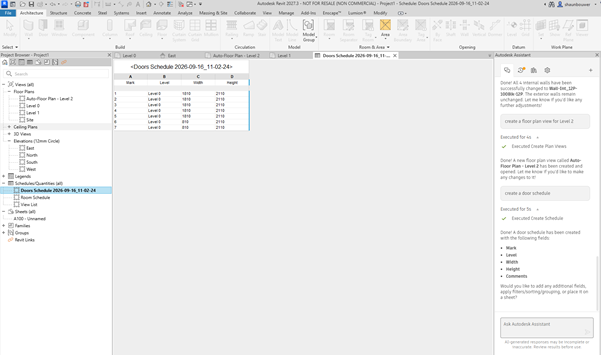
Create a schedule of all doors.
Once the schedule exists, you can continue working with it through natural-language instructions.
The Assistant isn’t merely telling you which buttons to click.
It can interact with supported aspects of the Revit environment.
Autodesk’s documentation identifies schedule creation as an example of Assistant task automation.
Creating and Managing Views
Views are another area where Assistant can be useful.
Revit models contain many ways of presenting the same underlying building information:
Plans, Sections, Elevations, 3D Views, Schedules and other documentation views.
Autodesk describes these as different presentations of the same underlying model database.
Assistant can help create certain views and manage them.
For example:
Create a floor plan for Level 3.
Or:
Create a section view through the building.
It can also work with view organisation and supported view properties.
This is particularly useful when the model already contains the information required and the task is essentially about creating or organising the documentation around that information.
View Graphics and Visibility
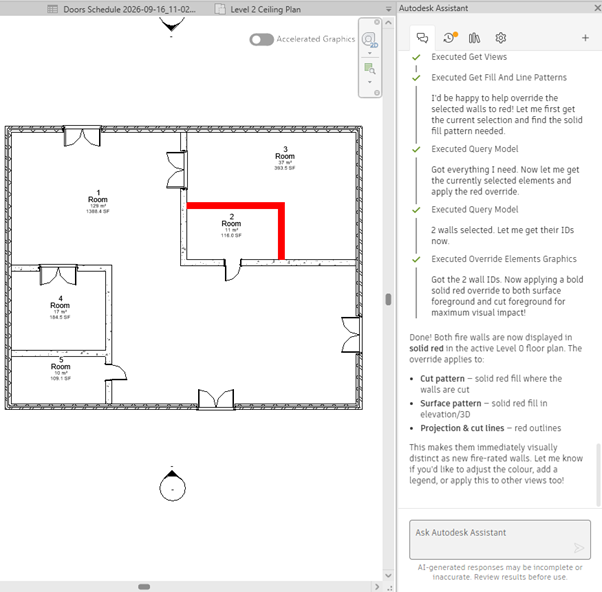
One of the more interesting developments in the newer Revit Assistant experience is the ability to work with view graphics and visibility using natural-language requests.
Autodesk’s 2027.2 documentation specifically highlights enhancements for:
- Changing element graphic overrides
- Showing and hiding elements
- Adjusting view detail
- Receiving clearer explanations when a request cannot be completed
Instead of navigating through multiple Visibility/Graphics controls, a user might be able to say:
Hide furniture in this view.
Or:
Change the graphics of the structural columns.
Or:
Show these elements with a different colour.
This can potentially make repetitive view-management tasks considerably more conversational.
Moving and Rotating Elements
Assistant can also perform certain supported modifications to existing model elements.
For example, a request may involve moving or rotating an element rather than creating completely new geometry.
This is another useful distinction.
There is a significant difference between:
Create a new wall here.
and
Move this existing element 500 mm to the east.
The second request works with an existing model object and a supported modification.
This illustrates an important principle when working with AI in Revit:
The question isn’t simply whether AI can model. The question is which model operations it has access to.
That is a much more useful way of thinking about AI-assisted BIM.
Tags, Rooms and Documentation
Documentation is another area where Assistant can help with supported tasks.
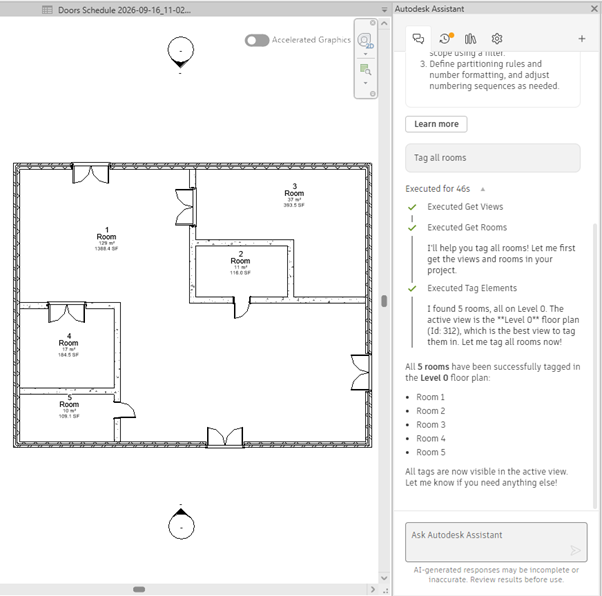
Assistant can tag elements in views and can work with room information, including room names and colour schemes.
For a BIM professional, these seemingly small tasks can become repetitive when working on large projects.
Imagine having to apply or adjust a particular piece of documentation across dozens of views.
If the operation is supported, a natural-language instruction can provide a quicker way of initiating the task.
Again, however, the BIM professional remains responsible for checking the result.
AI-assisted documentation does not remove the need for documentation standards.
Sheets and Drawing Organisation
The same principle extends to sheets.
Assistant can create and rename sheets, manage sheet numbers and names, and place supported views and schedules onto sheets.
This could become particularly useful as a project grows.
Instead of manually creating every sheet and placing every view, the user can describe supported organisation tasks.
For example:
Create sheets for these floor plan views.
or:
Place the Level 2 floor plan on sheet A-202.
The important word here is supported.
Not every possible Revit workflow can be expressed as a natural-language command.
Assistant operates within the tools and actions available to it.
Exporting Information
Assistant can also help with supported export operations.
Revit itself provides numerous export options, including PDF, image and other formats. Autodesk’s documentation identifies exporting views and sheets to PDF and exporting views to image files among the available Revit workflows.
Assistant’s ability to initiate supported exports adds another layer to the natural-language workflow.
The Big Limitation: AI Does Not Mean Unlimited Revit Access
This is probably the most important section of the entire article.
When people hear: AI can control Revit.
They can easily interpret that as: AI can control everything in Revit.
That isn’t the case.
The Assistant operates through defined capabilities.
This is why human oversight remains essential.
Good Prompts Produce Better Results
One of the easiest ways to improve your experience with Autodesk Assistant is simply to become better at communicating what you want.
Autodesk’s own guidance recommends providing context and asking one thing at a time. It contrasts vague prompts such as:
Create a schedule
with more specific requests such as:
Create a door schedule
This is good advice for any AI workflow.
Instead of:
Do something with Level 2.
Try:
Create a floor plan view for Level 2.
The more clearly you describe the intended result, the easier it becomes for Assistant to understand the request.
And if the first response isn’t what you expected, Autodesk recommends rephrasing the request or breaking a complex task into smaller steps.
Think of Assistant as a New Interface to Revit
This is where things get interesting.
For decades, we have interacted with Revit through:
Ribbon → Tool → Dialog → Properties → Options → Result
Autodesk Assistant introduces another possible interaction model:
Intent → Natural Language → Supported Revit Operation → Result
The software still performs an operation.
The difference is how the user communicates the intent.
So, What Can Autodesk Assistant Actually Do?
Based on the current capabilities presented by Autodesk and our testing in Revit 2027.3, Assistant can help with a surprisingly broad range of activities.
Information and guidance
It can:
- Answer Revit how-to questions
- Explain workflows and features
- Provide guidance on troubleshooting
- Explain BIM and documentation concepts
Model exploration
It can:
- Query model information
- Find and filter supported elements
- Retrieve element information and parameters
- Provide information about model components
Model and documentation tasks
It can perform supported operations involving:
- Schedules
- Floor plan views
- Section views
- Sheets
- Viewports
- View templates
- Graphic overrides
- Visibility
- Parameters
- Element movement
- Element rotation
- Tags
- Rooms
- Level elevations
Export and information management
It can also assist with supported export and documentation-management operations.
The exact capabilities available can change as Autodesk continues developing the Tech Preview, so users should always check the current Revit documentation for the latest functionality.
And What Can’t It Do?
This is equally important.
At the time of writing, users should not think of Autodesk Assistant as an unrestricted Revit modeller.
It cannot simply:
- Design an entire building independently
- Create arbitrary new modeling geometry on demand
- Replace the user’s design decisions
- Replace BIM standards and project requirements
- Understand design intent perfectly
- Guarantee that every automated result is correct
- Perform every Revit command through natural language
Our Level example provides a perfect illustration.
Create a new Level:
Not currently supported.
Create a floor plan from an existing Level:
Supported.
Modify the elevation of an existing Level:
Supported.
That small example tells us quite a lot about the current state of AI in Revit.
The Revit Professional Isn’t Going Away
There is sometimes a fear that AI will make learning Revit unnecessary.
I would argue that the opposite may eventually be true.
The better you understand Revit, the better you can communicate with an AI assistant.
If you don’t understand what a Level is, you may not recognise why Assistant can’t create one in a particular workflow.
If you don’t understand view templates, you won’t know whether the changes Assistant makes are appropriate.
If you don’t understand parameters, schedules and categories, you won’t necessarily know whether the information returned by a model query is useful.
If you don’t understand BIM, you cannot effectively validate a BIM workflow.
AI may reduce the number of clicks required to achieve something.
It does not remove the need to understand what you are trying to achieve.
The Future Is Not AI Builds Everything
The most interesting part of Autodesk Assistant isn’t necessarily the possibility of asking Revit to create geometry.
It is the possibility of interacting with a complex BIM environment using natural language.
Let AI Do the Repetitive Work — Not the Thinking
So, can Autodesk Assistant build your Revit project for you?
Not currently.
And perhaps that isn’t the right question.
The more interesting question is:
What parts of the Revit workflow can AI help us perform faster, while keeping the BIM professional in control?
With Revit 2027 and its continuing 2027.x updates, Autodesk Assistant is already moving beyond being a simple help tool.
The future of BIM may not be about replacing the person sitting in front of Revit.
It may be about giving that person a much more intelligent way to interact with the model.
And if your first thought after reading this is:
Okay, but can it model the walls yet?
Well…
That’s exactly the question we should be asking.
Just don’t be surprised if the answer changes sooner than you think.

